
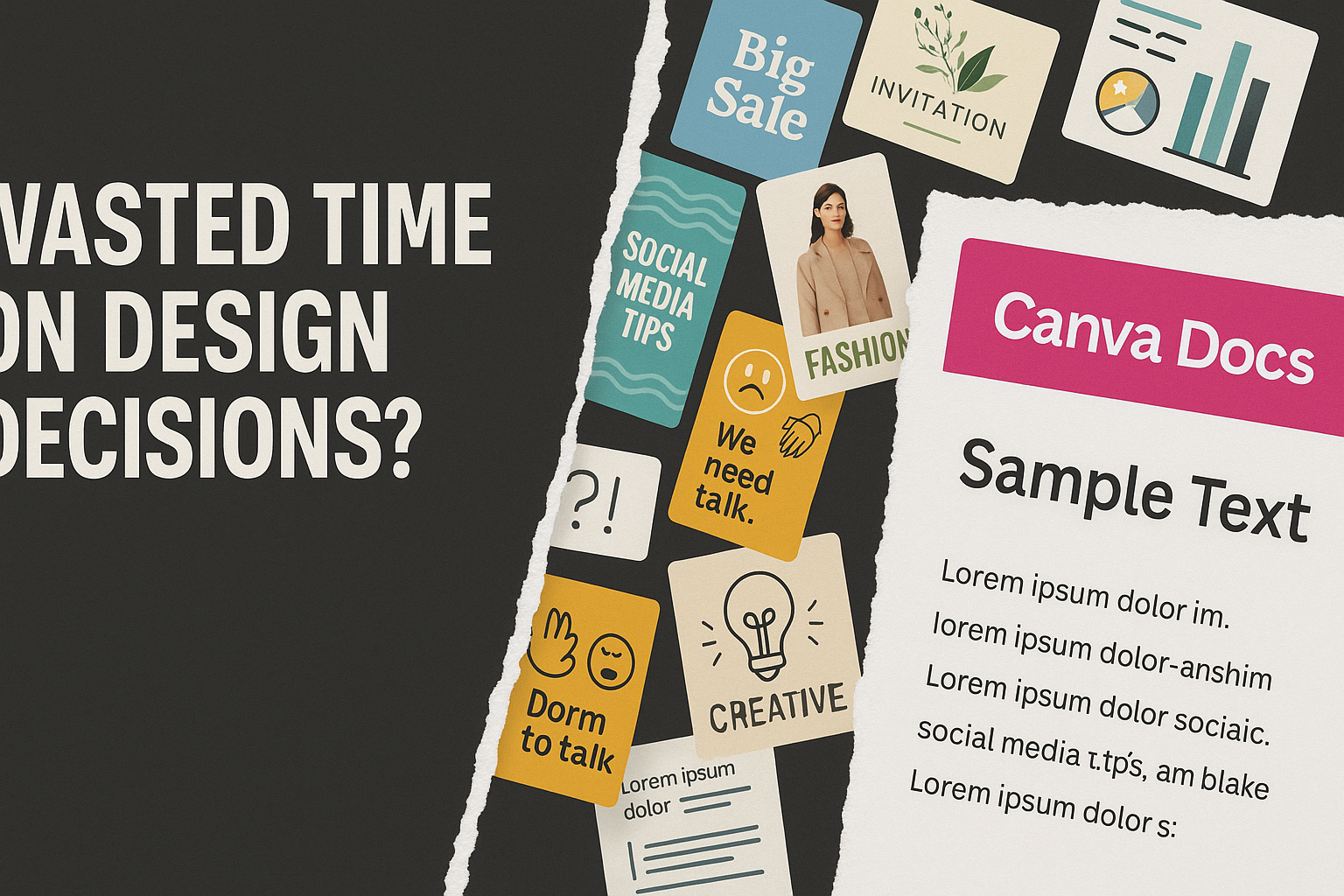
You open Canva, hit “Create”, and suddenly you’re drowning in template options. You pick one that looks vaguely professional, paste your copy in, and it breaks immediately. The text doesn’t fit, headings are the wrong size, and you spend the next hour tweaking text boxes, fiddling with margins, second-guessing font sizes. You’re no closer to a launch-ready lead magnet PDF.
This is where most people live when they try to create lead magnet PDFs, even when they’re using Canva. But it’s not because they lack design skills. It’s because Canva Docs for lead magnet PDFs is a completely different tool. Instead of choosing a template and wrestling with its constraints, you paste your copy first and let the software do the formatting work. No alignment tweaks, margin decisions, or design rabbit holes.
This article walks you through exactly why Canva Docs beats templates and how to go from copy to exportable PDF in minutes. The defaults already work. You just need to stop fighting templates and let the tool do its job.
TL;DR for the Impatient Nugget Seekers
- Templates are friction dressed as shortcuts. You spend more time choosing and customising than actually creating. Decision fatigue kicks in before you’ve written a word.
- Canva Docs formats your copy automatically. Paste it in and the tool handles hierarchy, spacing, and typography. Your content flows instead of breaking.
- The full process takes minutes, not hours. Open a blank Doc, paste copy, format headings, add a header image, export as PDF. That’s it.
- Lead magnets don’t need design awards. They need to capture emails and deliver value. Canva Docs breaks the false choice between “looks polished” and “takes forever.”
- Test mentality beats perfectionism. Ship this week, collect feedback, iterate from data. The imperfect PDF that launched beats the perfect one that didn’t.
Right, let’s get into it.
Why Canva templates waste your time on design decisions
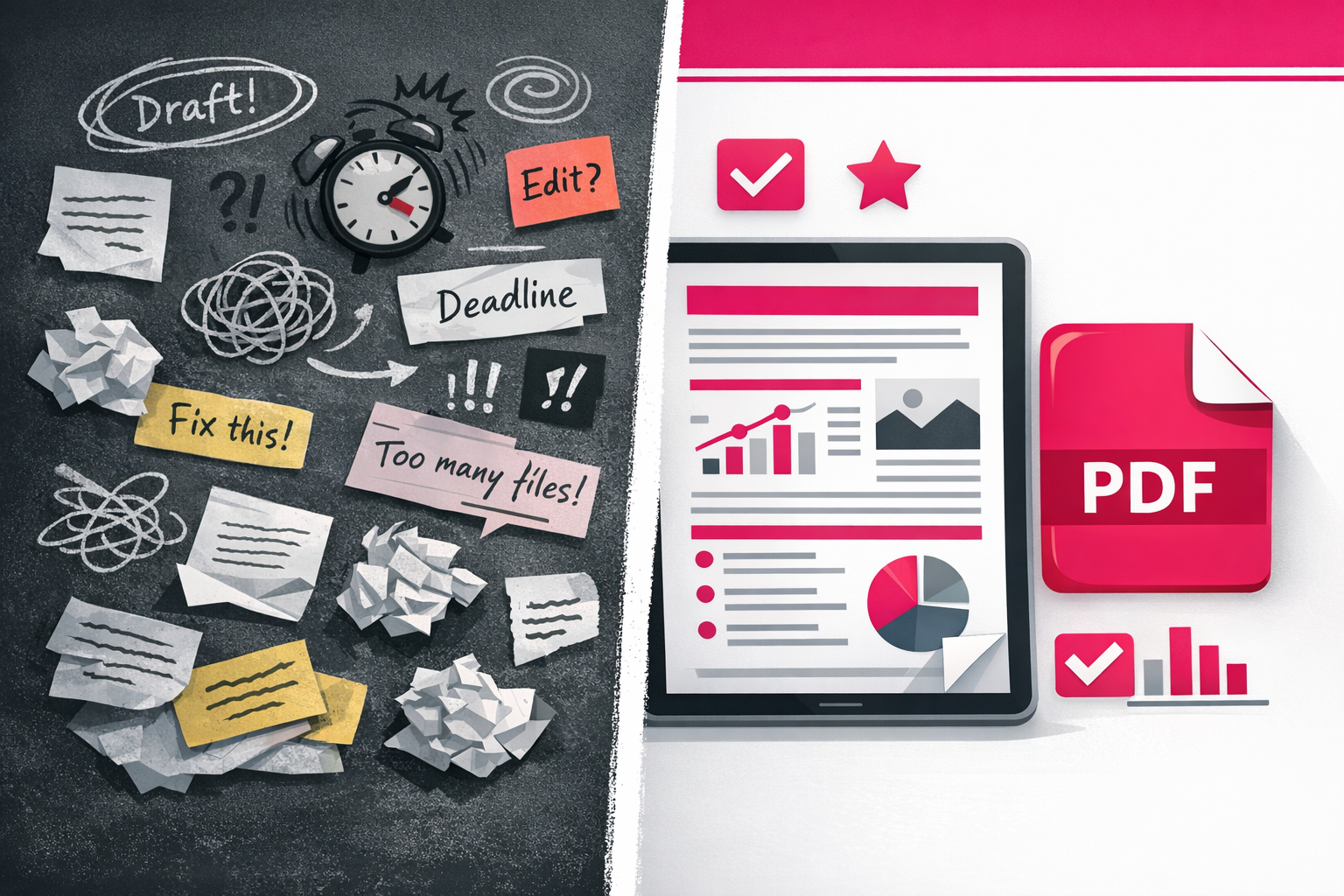
I see this happen constantly. Someone decides to create a lead magnet PDF, opens Canva, scrolls through templates, picks one that looks nice, and then spends forty-five minutes fighting it. They’re adjusting text box widths, realigning sections that shifted when they added a paragraph, changing fonts because the default doesn’t feel “on brand,” wrestling with spacing that looked fine at first but now feels unbalanced. By the time they finish, they’ve solved a design problem instead of solving their business problem.
Templates feel like the shortcut. In reality, they’re a design obstacle dressed up as a starting point.
Here’s why. A template hands you someone else’s design decision as a starting constraint. You didn’t choose the font pairing, the colour scheme, the heading hierarchy, or the spacing logic. But you still need to live with it, work around it, or spend energy changing it. Every decision you make inside that template is friction. Does this font work with my copy? Does this layout still make sense if my section is longer? Should I use this template’s style or create something that matches my site better?
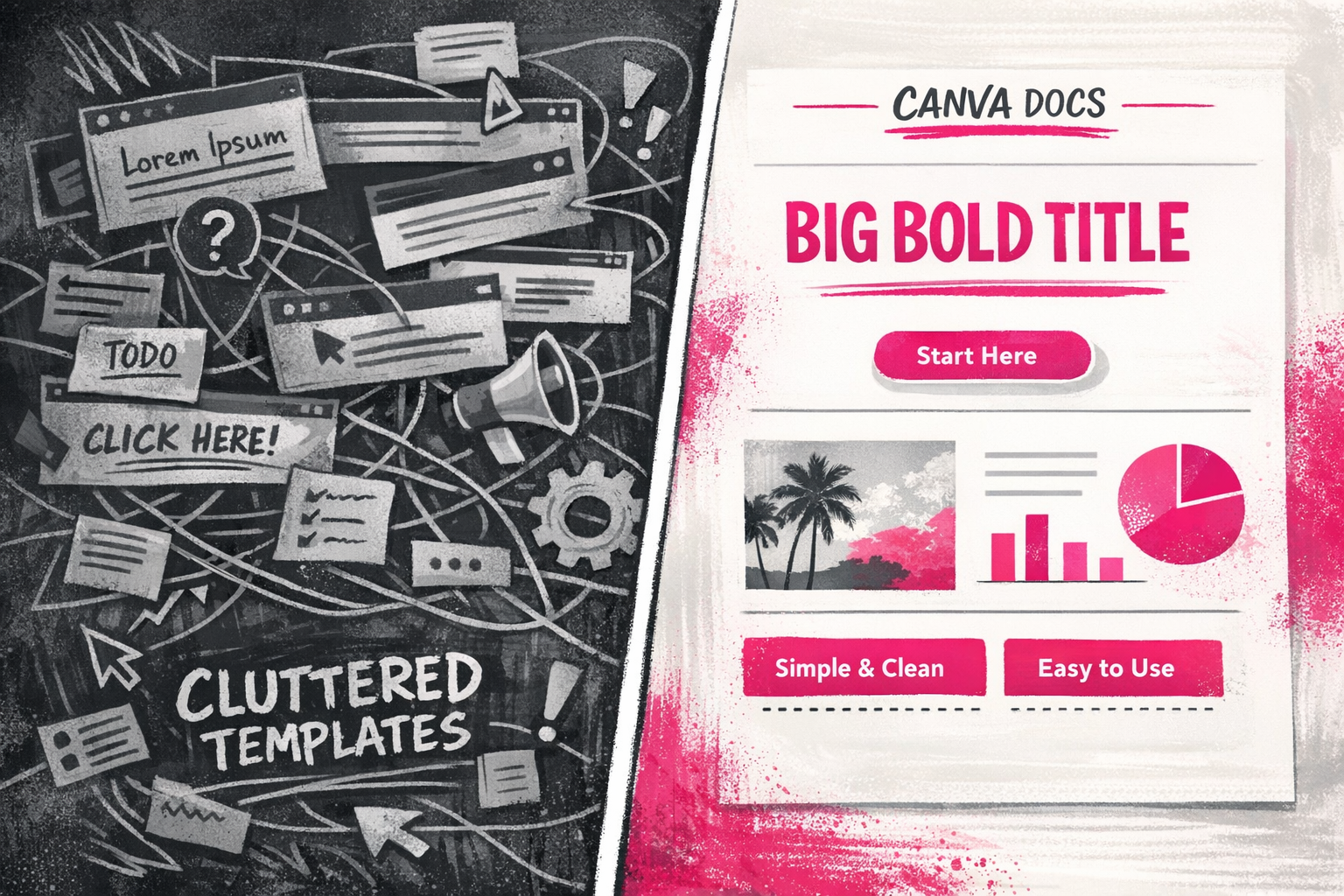
Canva Docs inverts the entire equation. Instead of choosing from dozens of templates and then customising your way to a workable design, you paste your copy first and let the tool handle the visual heavy lifting. The formatting is already solved, the typography hierarchy exists, and the spacing breathes. You’re not making design decisions. You’re making content decisions.
I think that distinction matters enormously for people building lead magnet PDFs quickly. Your energy should go toward writing copy that converts, not toward centring a text box or picking between two shades of blue.
Templates create decision fatigue before you even write
The template scroll is seductive. Fifty options, each one promising to make your PDF look professional in seconds. But choosing is its own tax. Which one matches your content? Which one leaves enough room for your copy without looking sparse? You pick one, realise it’s not quite right, go back, pick another. Twenty minutes later you’ve chosen a template but haven’t written a word.
Canva Docs for lead magnet PDFs skips the design friction entirely
With Canva Docs, you open a blank doc, paste your copy, add a header image, and export as PDF. The tool applies consistent formatting automatically. Your text flows properly. Your headings sit at the right scale. Margins exist and they’re sensible. You never touch a single setting because the defaults already work.
That’s the real power here. You’re not learning design software or making aesthetic choices that slow you down. You’re building a lead magnet that looks finished because the system was built to produce finished work.
How Canva Docs formats copy automatically
Here’s what happens when you paste your lead magnet copy into Canva Docs. The tool reads it. Applies heading hierarchy automatically. Adjusts spacing so it breathes. Sizes your paragraphs so they’re readable without you tweaking a single pixel. You get typography that works, alignment that exists, margins that make sense. All of it happens instantly, before you’ve made a single design decision.
I think this is the bit that actually removes the design excuse entirely.
With templates, you’re trapped inside someone else’s design system. You paste your copy and it breaks immediately. Your section runs too long for the allocated space. Your heading doesn’t fit the template’s scale. You need to cut words or resize text or shift everything around just to make it fit. That’s design friction masquerading as speed.
Canva Docs treats your copy like the priority
The platform works backwards from how templates work. Templates say: here’s the design, fit your words into it. Canva Docs says: here’s your copy, I’ll format it so it looks good. You paste everything in, the doc flows naturally, and the formatting follows your content instead of constraining it. Your 200-word section flows across the page with proper heading weight and paragraph spacing applied automatically. Your 500-word section gets the same treatment and still looks finished.
This matters because your copy is already doing work. It’s converting, persuading, teaching. Why would you spend energy fighting layout when you could spend it perfecting the words that actually move people?
The PDF export is where Canva Docs for lead magnet PDFs proves its value
You hit export. Choose PDF. Download it. The output arrives looking exactly like what you built in the editor, fully formatted, readable on every device, ready to send to your list. No rendering surprises, margins that shift between preview and PDF, or fonts that drop back to defaults.
Indeed, that’s genuinely rare in free PDF tools.
I see people use Docs for lead magnet PDFs specifically because they’re not managing design. They’re managing content flow. A header image sits at the top. Your copy fills the page with proper breathing room. A footer or CTA button completes it. The tool handled hierarchy, typography, alignment, and spacing. You handled making your idea worth reading.
Everything you’ve built displays exactly as intended. No surprises. No “maybe if I adjust this margin” friction. You design lead magnets in Canva Docs the way you should design them: by focusing on what people actually read, not on how to make text boxes behave.
The actual process: from copy to exportable PDF
Right. Let’s walk through this so you see how fast it actually is. I’m going to assume you’ve already got your copy ready, whether that’s a transcript you’ve cleaned up or content you’ve written from scratch. (I go deeper on extracting and shaping that copy in How to Turn a Transcript Into a Lead Magnet PDF in 10 Minutes.)
Open Canva, create a new blank Doc, and paste your copy straight in. That’s it. You’re not uploading a template, not hunting for the right layout, not second-guessing dimensions. Just paste.
Add structure without fiddling
Now you format for hierarchy, not design. Highlight your main headline and set it to Heading 1. Do the same for section breaks. Bullet points? Select the text and apply the bullet list style. Bold key phrases if they matter to scanning. This takes maybe two minutes, and you’re not touching a single margin or worrying about whether text boxes are aligned.
Canva applies sensible spacing and typography automatically as you tag things. Your PDF will look clean because the software does the thinking for you.
One image and you’re done
Drop a header image or logo near the top. You can use Canva’s library, upload your own, or grab something from Unsplash. Size it to feel balanced. Canva will handle the rest. I usually spend thirty seconds on this.
Check the preview. Does it read well? Do the headings stand out? If yes, export as PDF. If something feels off visually, it’s almost always because the copy itself needs breathing room, not because the design is wrong.
Export the PDF. Save it to your drive. Done.
Why this approach removes the design excuse
Here’s what matters: you’re not designing. You’re structuring. You’re letting the software handle visual consistency while you focus on what makes a lead magnet actually work, which is the copy.
I’ve seen people spend an hour in Canva templates, resizing text boxes, adjusting padding, trying to make the template feel like theirs. By the time they’re done, they’re tired and the PDF still looks generic because they were working against the template instead of with their content.
Canva Docs inverts that. The software assumes your copy is the priority and builds the visual around it. Your PDF looks professional without you having to make a single design decision.
If you’re starting from a transcript or recording, the one thing that will actually make or break your lead magnet is how well the copy is structured. That’s where the real work is. Turn A Transcript Into a Beautiful Lead Magnet Using Claude AI handles that extraction and shaping for you. It’s Claude AI doing the heavy lifting on turning raw transcript into polished, formatted copy. Then you paste that into Canva Docs and you’re fifteen minutes away from a ship-ready PDF.
Ship the lead magnet, not the design
Here’s what I’ve noticed: most people treat their lead magnet like it’s a product launch. They agonise over fonts, hunt for the perfect template, tweak margins for forty minutes, and then lose momentum entirely because the design side feels too big.
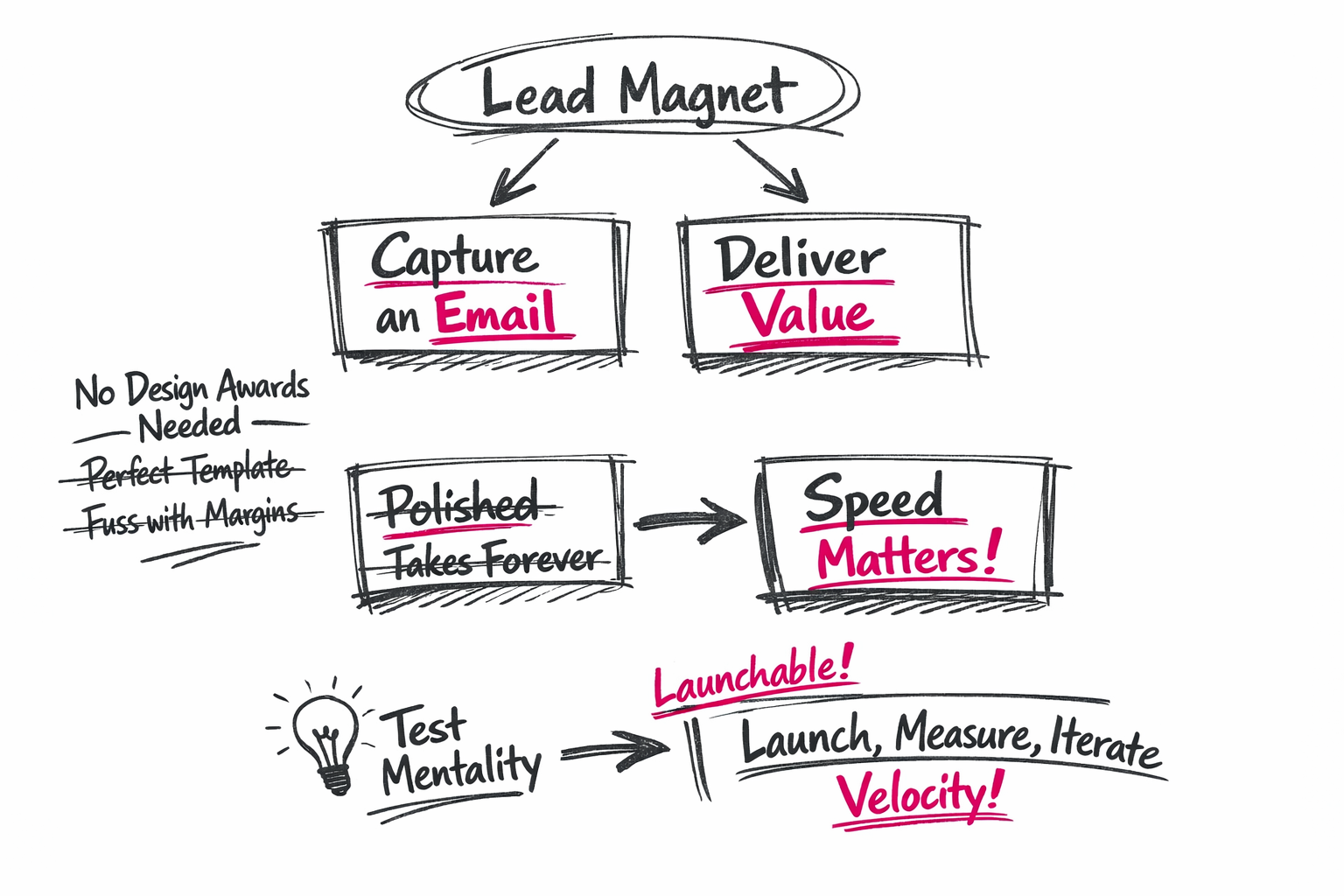
Your lead magnet’s actual job is tiny. Capture an email. Deliver genuine value. That’s it. Everything else is noise.
The permission structure matters here. You don’t need a design award. You need something that looks intentional, professional enough, and ships today so you can test whether the idea actually works. That’s where Canva Docs for lead magnet PDFs becomes your competitive advantage. It handles the visual heavy lifting automatically. No margins to fuss with. No alignment decisions to paralyse you.
Why speed matters more than polish
I think the biggest blocker isn’t design skill. It’s the false choice between “looks polished” and “takes forever.” You convince yourself you need one before you get the other, so you end up with neither.
Canva Docs breaks that choice entirely. You paste your copy in, add a header image, export as PDF, and you’re done. The auto-formatting does the work. No template wrestling, no design friction, no excuses left.
When you’re testing a lead magnet idea, velocity is your real constraint. Can you launch it this week and collect feedback? Or will the design side steal three weeks and kill your momentum? Canva Docs answers that question immediately.
The test mentality shifts everything
Once you stop thinking of your lead magnet as a finished product and start thinking of it as a test, the whole approach changes. You’re not building the perfect PDF. You’re building the fastest PDF that still looks like you care.
That mindset shift alone saves you hours. You launch, you measure what lands, and you iterate from actual data instead of guessing. If the angle doesn’t work, you’ve lost a morning, not a month. If it does work, you have time to refine it properly.
This is exactly the thinking behind how I’ve structured The Build-As-You-Fly Lead Magnet Test. It’s built on the premise that you test the idea first, polish it second. Speed to market beats perfection every time.
Your lead magnet doesn’t need to be gallery-ready. It needs to be launchable. Canva Docs gets you there without the design excuse standing in your way.

Related posts you might find helpful: