

Creating Professional Carousels in Canva
A lot of business owners hit a wall with carousels. I see it all the time. You know the format works. You have something useful to say. Then you open Canva and either lose an hour moving things around or post something that looks rushed.
The gap between what you picture in your head and what ends up on screen can be frustrating. I think that’s the part people don’t talk about enough. It’s not a lack of ideas. It’s the design translation.
In this article, I walk through how I design a professional-looking carousel in Canva without making it complicated. I focus on the decisions that actually change how polished it feels, so I can work faster and feel steady about what I publish.
Professional does not mean complex. In my experience, it usually comes down to a handful of consistent choices. Once I lock those in, everything feels simpler. More contained. Much easier to repeat.
Key Takeaways
- Consistency across slides is what makes a carousel look professional. I stick to the same fonts, colours, and layout structure throughout. That matters far more than any decorative design choice.
- Starting with a template is a smart shortcut. I use Canva’s ready-made carousel formats as a base structure instead of building from scratch.
- Slide one carries the most weight. I make it clear enough to stop the scroll and direct enough that people know exactly what they’re getting.
- Keeping each slide focused on a single point makes the whole thing easier to follow. It also makes it more likely someone will stay with it until the end.
- Small details like alignment, spacing, and contrast are what separate something that looks considered from something that looks thrown together.
Once I understand these building blocks, carousel design becomes straightforward. Nothing fancy. Just clear decisions made on purpose. Read on to see how I bring these elements together in practice.
Stop Starting From Scratch: Building a Time-Saving Carousel System
If you want to design a professional-looking carousel in Canva without losing half your afternoon to it, the answer isn’t “work faster”. It’s stop starting from zero every single time.
Carousels are genuinely useful. They get saved. Shared. Revisited. Usually more than a single static post. So yes, they’re worth doing. But “worth it” should mean a few focused minutes. Not disappearing into a creative hole every time you’ve got something to say.
The Myth That Every Carousel Needs to Feel New
There’s this lingering belief that every piece of content has to look completely new to feel authentic. It doesn’t. Your audience isn’t analysing whether you reused last Tuesday’s layout. They’re reading the words.
Consistency in design isn’t lazy. It’s smart. When your carousels use the same fonts, colours, structure, they become recognisable. Instantly. That’s brand recognition quietly doing its job in the background while you get on with running your business.
And honestly, what you’re protecting by keeping things consistent isn’t creativity. It’s time. Your time.
How a Canva Carousel System for Repurposing Actually Works
The shift is simple. Build one solid template set in Canva. Make it good. Then use it as your default starting point forever.
That might mean:
- A cover slide
- A handful of content slides with different text layouts
- A closing call-to-action slide
Nothing fancy. Just thought through once, properly.
After that, you duplicate. Drop in new copy. Publish. Done.
A lot of business owners find their design time drops massively when they work this way — and the content still looks polished. Sometimes more polished, actually, because it’s consistent.
If you’re drafting or structuring your carousel content with an AI tool before you even open Canva, it gets leaner again. You show up knowing what goes on each slide. Which removes the biggest time drain of all: staring at a blank design and second-guessing yourself halfway through.
The point of a system isn’t to make everything look identical. It’s to think it through once so you don’t have to keep rethinking it.
And if you’re honest, there’s probably at least one part of your current process that you’re rebuilding from scratch every week for no good reason. That’s usually the bit to template.

The Power of Templating: Make Canva Work for You
If you want to design a professional-looking carousel in Canva without starting from scratch every single time, templating is the shift that changes everything. Most people open Canva, pick something that looks nice, and start typing. That’s not a system. That’s just hoping it’ll all somehow look consistent in the end.
Stop Treating Canva Like a Blank Canvas
Canva is genuinely useful, but not because it has pretty fonts or a drag-and-drop editor. It’s useful because it can hold your entire visual identity in one reusable structure. Build a proper template once, and every carousel after that becomes a content swap, not a full redesign.
Here’s what that looks like in real life. You create one solid carousel design — your slides, your fonts, your brand colours, your logo placement — and you duplicate it every time you need a new post. Nothing shifts, drifts, or looks slightly off because you grabbed the wrong shade of blue while rushing between tasks.
How to Set Up a Template That Actually Holds Together
Getting this right takes about twenty minutes the first time. Honestly, it’s worth every minute. Here’s how to approach it:
- Open a new Canva design and set it to 1080 x 1080px (square) or 1080 x 1350px (portrait) for Instagram
- Add your brand colours to your Canva colour palette so they’re always one click away
- Set your heading and body fonts using Canva’s Brand Kit (available on paid plans)
- Build each slide type you typically use — a cover, a content slide, and a closing CTA slide
- Add placeholder text and image blocks so the structure is clear before you touch real content
- Save it with a clear name, then use “Make a copy” every time you start a new carousel
What you’re actually building here
The goal isn’t perfection on slide one. It’s a skeleton you trust enough to reuse without faffing about or second-guessing every font choice.
Templating carousels for Instagram works because consistency builds recognition, and recognition builds trust. When someone sees your carousel in their feed, they should know it’s yours before they read a word. That’s not vanity. That’s professional carousel design in Canva doing what it’s meant to do.
There’s also a creativity point here that people don’t talk about enough. When the structural decisions are already made, your brain stops burning energy on layout. It can actually focus on the idea. The message. The point you’re trying to make. I think a lot of business owners write better when the design friction disappears. It’s easier to think clearly when you’re not nudging text boxes around.
Using Canva for fast carousel design isn’t about cutting corners. It’s about removing decisions that never needed to be made twice. A strong template lets you create an Instagram carousel quickly without losing the polish that makes people stop scrolling.
If you haven’t built one yet, that’s your next move. Open Canva. Block out twenty minutes. Build your first reusable template. Future you will be very glad you did.

Harnessing AI: From Content to Carousel Without the Headache
If you’ve ever tried to design a professional-looking carousel in Canva and felt stuck before you even opened the app, this is probably why. It’s not Canva. It’s not your design skills. It’s not knowing what on earth to put on each slide.
AI can help there. Not to think for you. Not to replace your judgement. Just to clear the path so you’re not staring at a blank screen wondering how this became so complicated.
For most business owners, the bottleneck isn’t design. It’s structure.
What AI Actually Does Well Here
AI tools like ChatGPT or Claude are good at one very specific thing: distilling. You give it a blog post, a scrappy voice note transcript, or even a half-formed idea, and tell it to pull out five to seven key points in plain English. Suddenly, you’ve got a slide-by-slide outline.
That’s your roadmap.
When you jump into Canva for fast carousel design, you’re no longer starting from nothing. You’ve already done the heavy lifting. You’re just shaping it visually.
And honestly, that’s where most people get stuck. Slide one becomes this weird pressure point. It has to be clever. Polished. Perfect. So nothing happens. AI handles the condensing and structuring. You get to focus on making it look and sound like you.
That’s why it’s useful. Not because it’s shiny. Because it saves you time.
Where Human Input Still Matters
Here’s the bit people skip.
AI will give you a logical structure. It will not give you your voice. What it spits out is often flat. Slightly generic. Sometimes technically correct but… off. And if you paste that straight into your carousel, your audience will feel it. Even if they can’t explain why.
Treat it like a rough draft you’d never send as-is.
When you create an Instagram carousel quickly this way, the speed doesn’t come from switching your brain off. It comes from having a clear content skeleton to work with. You still need to rewrite it in your own words. Tighten the phrasing. Make sure it actually sounds like you. Check the hook earns the swipe.
AI gets you to the starting line faster. That’s it. It’s a tool, not a shortcut to credibility.
If you want to test it, take one piece of content you’ve already created — a caption, a voice memo, a newsletter. Ask an AI tool to break it into a five-slide structure with a clear hook and one takeaway per slide. Then open Canva, drop that into your template, and see how differently it feels.
I think you’ll notice the shift straight away. Less dithering. More doing.
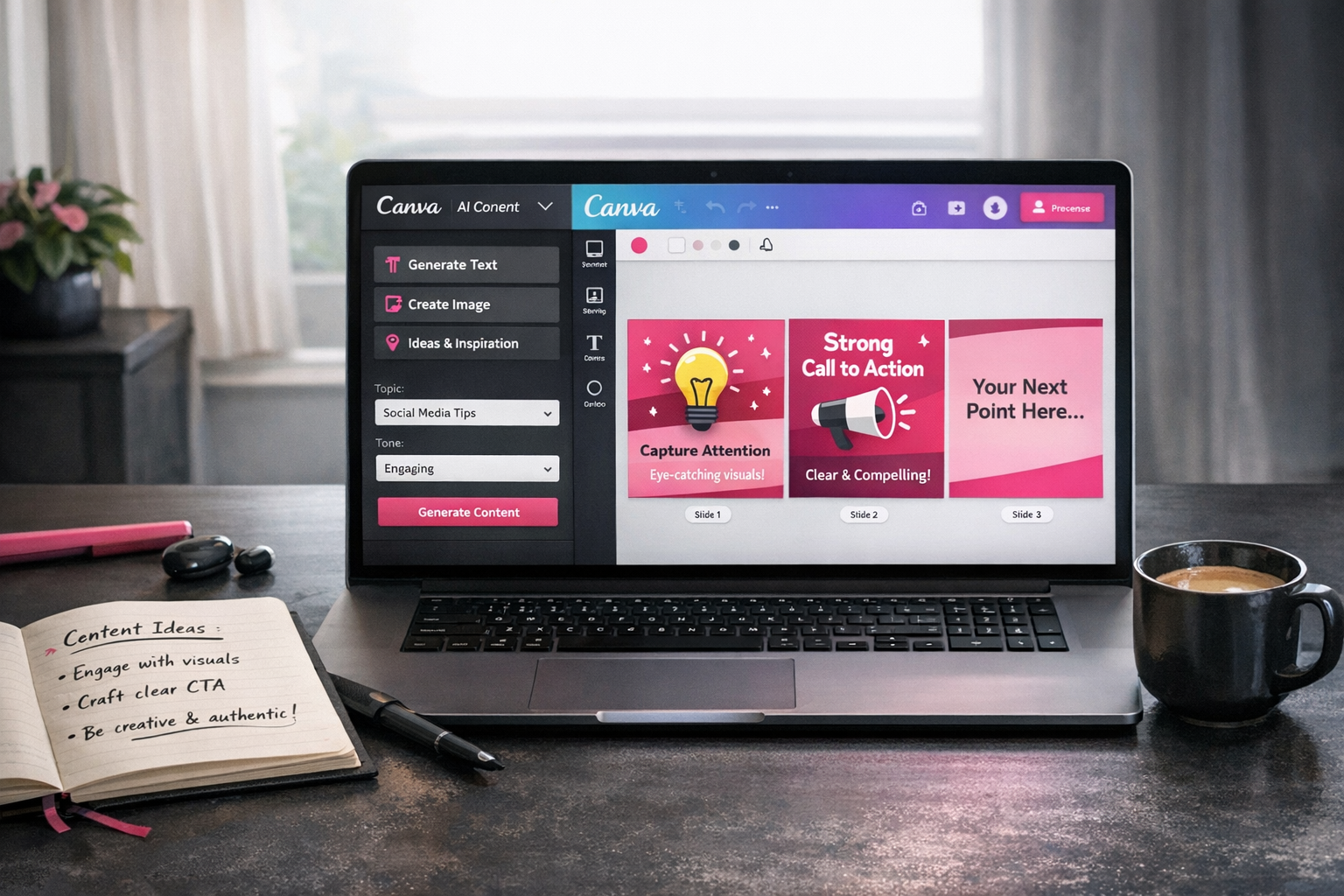
Real Ideas, Real Connections: Crafting Content That Matters
When people search for how to design a professional-looking carousel in Canva, they assume the hard part is the design. It isn’t. The hard part is knowing what to say.
Stop Obsessing Over Pixels
A beautifully designed carousel with nothing worth reading is just wallpaper. And there’s plenty of that already. People scroll past lovely graphics all day. What makes them stop is spotting something true. Useful. Uncomfortably accurate.
Professional carousel design in Canva matters, yes. But it’s the vehicle, not the destination.
This is why templates are so powerful. When you’re not rebuilding layouts from scratch every five minutes, you get your headspace back. And that headspace is where the actual value is. Templating your carousels for Instagram removes the design decision so you can focus on the content decision. That’s the bit that drives engagement.
Where Good Carousel Ideas Actually Come From
If you want a simple framework for ideas, here it is: problems, questions, mistakes.
What does your audience keep getting wrong, what do they ask you on repeat, and what do you wish someone had told you earlier in your field?
Those three prompts will generate more solid carousel ideas than any fancy content calendar template. I think we overcomplicate this because it feels like we should have a system. Often, you just need to pay attention.
When you’ve got an idea, pressure-test it with one question: “Would someone save this?” If yes, build it. If you hesitate, the idea probably needs sharpening. Not better design. Sharper thinking.
If you want to create Instagram carousels quickly without lowering the bar, keep an ongoing list of ideas somewhere painfully simple. Notes app. Notebook. Sticky note. It doesn’t matter. The goal isn’t a sophisticated system. It’s catching good thinking before it disappears.
Here are a few idea types that work well in carousel format:
- Myth-busting (“What most people get wrong about X”)
- Step-by-step breakdowns of things your audience finds confusing
- Contrarian takes on common advice in your industry
- Behind-the-thinking content that shows your reasoning, not just your conclusions
- Reframed questions your audience is already asking
The design can be consistent, repeatable, efficient. That’s what a Canva carousel system for repurposing gives you. Great. Use it.
But if the slides say nothing memorable, none of that matters.
Real connection comes from real ideas. The rest is just formatting.
Over to you: What’s one idea from this list you could turn into your next carousel? Share your key takeaway or what you’re planning to make. I’d genuinely love to hear it.

Let Systems Serve the Bigger Picture
When you design a professional‑looking carousel in Canva, it’s not about one decent post. It’s about building something you can use again and again without thinking. The win isn’t the carousel. It’s the system behind it. Always has been.
Why a Canva Carousel System for Repurposing Changes Everything
A lot of business owners treat every piece of content like a fresh start. Blank page. New design. New decisions. That’s where time just haemorrhages. When you build a proper Canva carousel system for repurposing, you’re not redesigning anything. You update the words. You hit publish. That shift alone can give you proper time back each week.
And that time matters. You could pitch yourself for a podcast. Write that email sequence you’ve been putting off. Follow up with warm leads instead of letting them drift. The creative effort up front pays you back every time you use Canva for fast carousel design instead of reinventing the wheel. Again.
What happens when you commit to a system
It’s interesting — once people template their carousels, the resistance drops. Not because they suddenly love Instagram. But because the hard part’s already done. The format’s sorted. Professional carousel design in Canva stops feeling like a performance and starts feeling like filling in a slot.
A tidy Canva workspace helps more than people realise. Folders by content type. Brand kit locked in. Master templates saved properly. Then you can create an Instagram carousel quickly, even on a busy Tuesday afternoon when your brain’s half elsewhere. You’re not rummaging through old files. You’re not trying to remember which font you used last month. It’s all just… there.
And the ripple effect? It’s bigger than graphics. When your visuals are consistent and your process is quick, you show up differently. Calmer. More certain. Templating carousels for Instagram might seem small, but it signals something bigger: you’ve stopped treating marketing like a weekly emergency and started treating it like a system.
Here’s what a simple Canva carousel system tends to include:
- A master slide template with your brand colours, fonts, and logo already placed
- A cover slide layout that can be updated in under two minutes
- A consistent slide count so you’re never guessing how much content to write
- Folders organised by content theme or campaign so nothing gets lost
- A naming convention that makes repurposing old designs easy to spot
If you’re already using something like Notion or Trello, link your Canva templates straight from there. Not because it’s clever. Just because finding things fast is half the battle when you’re short on time and still want to show up properly.
The businesses that get traction with content aren’t always creating more. They’re creating smarter. A professional‑looking carousel in Canva that took you twenty minutes this week can take five next week. The system holds the memory so you don’t have to.
Take a moment and look at your current marketing workflow. Where are you starting from scratch when you don’t need to? That’s usually the gap. And often, it’s not some massive overhaul that fixes it. It’s a simple system. Sometimes just a saved Canva template. Small shift. Big difference in pace.